Secure your home router with firmware updates, strong passwords, guest networks, and DNS filtering. Practical tips for Albuquerque homeowners.
Most households in Albuquerque have more than twenty devices connected to their home network: phones, laptops, tablets, smart TVs, streaming sticks, thermostats, doorbells, security cameras, game consoles, and smart speakers. Every one of those devices enters your home through a single point — your router. A poorly configured router makes all of those devices and the people using them vulnerable to attacks that are increasingly automated, targeted at residential IPs, and executed using tools that require no technical skill from the attacker. Forty-five minutes of proper configuration dramatically improves your household's security.
Start With Router Firmware
Router firmware updates are the most neglected security task in residential networks, and the most important. Manufacturers regularly release firmware patches that fix exploitable vulnerabilities in routing software, wireless drivers, and management interfaces. Many of the worst home router hacks in recent years exploited vulnerabilities that had firmware patches available for months before attacks occurred. The compromise happened because the owner never updated.
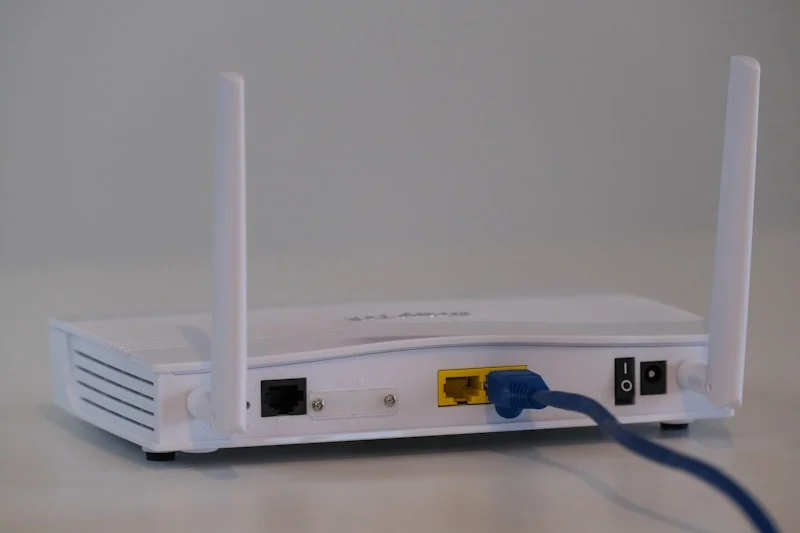
Log into your router's admin interface — typically accessed by navigating to 192.168.1.1 or 192.168.0.1 in a browser — and check the firmware section. Manufacturers like ASUS, Netgear, TP-Link, and Eero often include automatic update options that check for and apply firmware in the background. Enable this if available. If your router is more than three years old and no longer receives firmware updates from the manufacturer, it is a security liability and should be replaced. An unsupported router is comparable to a computer running an unpatched operating system.
Admin Credentials and Wi-Fi Passwords
Change the router admin password immediately if you have not already. Default admin credentials for most home routers are publicly documented online — a quick search for your router model will return the factory username and password. Attackers scan for routers with default credentials and compromise them within minutes. Set a unique admin password of at least 16 characters and store it in a password manager. Never use the same password for router administration and Wi-Fi access.
Set a strong Wi-Fi passphrase of at least 16 characters using mixed case, numbers, and symbols. Use WPA3 security if your router and devices support it. WPA3 provides significantly stronger encryption than WPA2 and resists brute-force attacks. If WPA3 is unavailable, use WPA2-AES, never WPA2-TKIP or the older WPA standard. Avoid using Wi-Fi names (SSIDs) that identify your address, your name, or your ISP, as this information helps attackers target or map your network.
Disable WPS (Wi-Fi Protected Setup). WPS was designed to make connecting devices easier by using a PIN or button press, but the WPS PIN implementation has a known cryptographic vulnerability that allows brute-force attacks in hours. Even with WPS PIN attacks largely mitigated in newer firmware, the push-button WPS still poses physical security risks if someone gains momentary access to your router. Disabling WPS in router settings removes this attack surface entirely.
Guest Networks and Network Segmentation
Create a separate guest Wi-Fi network for visitors and smart home devices. The guest network should be isolated — meaning devices on it cannot communicate with devices on your main network. When your neighbor visits and connects to guest Wi-Fi, their phone cannot see your shared drives, printers, or NAS. More importantly, a compromised smart TV or thermostat on the guest network cannot pivot to your laptop or home server on the main network. This is the residential equivalent of network segmentation that enterprise IT teams implement.
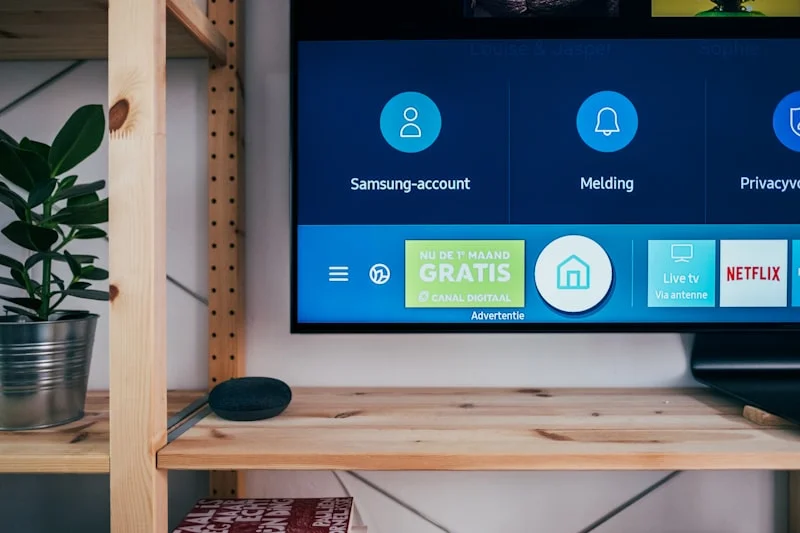
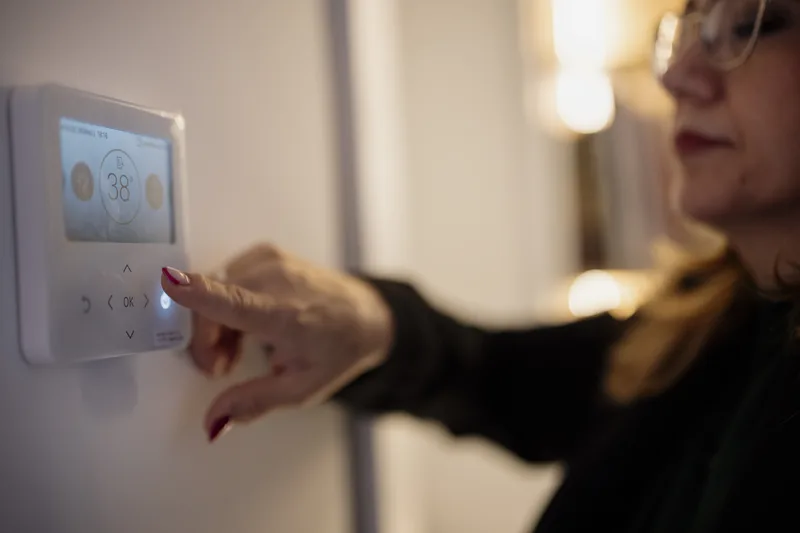
Put smart home IoT devices on the guest or IoT SSID rather than your main network. Smart speakers, security cameras, light bulbs, and appliances from lesser-known manufacturers are notorious for poor security practices: hard-coded credentials, unencrypted communications, and infrequent firmware updates. These devices are common entry points in home network compromises. Isolating them means a compromised smart bulb cannot reach your banking laptop. Many modern routers support a dedicated IoT SSID specifically for this purpose.
Check what devices are connected to your main network periodically. Log into your router admin interface and review the client list. You should recognize every device. Unknown devices could indicate a neighbor using your Wi-Fi, a forgotten IoT device, or an unauthorized intrusion. If you see something unfamiliar, change your Wi-Fi password — all known devices will need to reconnect, forcing the unknown device off.
DNS Security for the Whole Home
Your router's DNS server translates website names into IP addresses. By default, most routers use your ISP's DNS servers, which provide no filtering or malware protection. Switching to a security-focused DNS service like Cloudflare 1.1.1.1 with malware blocking, Quad9 (9.9.9.9), or NextDNS gives every device on your network an additional layer of protection. These services block connections to known malware distribution sites, phishing pages, and command-and-control servers before your browser ever loads them.
Configure DNS filtering in your router settings so all devices benefit automatically, even those that do not allow app installation like smart TVs or gaming consoles. Enter the DNS server IP addresses in your router's WAN or DHCP settings. For families with children, DNS filtering services like CleanBrowsing or OpenDNS FamilyShield offer content filtering that blocks adult content and gambling sites network-wide without installing software on every device.
Advanced Protection: Firewall and Remote Management
Verify your router's SPI (Stateful Packet Inspection) firewall is enabled and that the default setting blocks all unsolicited inbound connections. Home routers should never have publicly accessible admin interfaces. Check whether your router's remote management feature is enabled — this allows administration via web browser from outside your home network. Unless you specifically need this and understand how to secure it, disable remote management. The attack surface of a home router with open remote management is significantly larger.
Port forwarding rules deserve a periodic audit. If you have set up port forwarding for gaming consoles, home servers, or surveillance cameras, each forwarded port is a potential attack vector. Review the list and remove any rules you do not actively use. For services that genuinely need remote access, consider whether a VPN into your home network is more secure than direct port forwarding. Many newer routers support WireGuard VPN servers natively.
Check if UPnP (Universal Plug and Play) is enabled on your router. UPnP allows applications and devices to automatically open ports on your router without your knowledge. This is convenient for gaming and media applications but creates security risks when malicious software uses UPnP to open ports for unauthorized access. For standard households, disabling UPnP and manually configuring any necessary port forwards is a safer approach.
Choosing a Router Worth Securing
Not all consumer routers are worth the time investment of proper security configuration. Entry-level ISP-provided routers and no-name brand devices often lack WPA3 support, have infrequent firmware updates, and do not get security patches for long periods. If you are investing time in securing your network, invest in hardware from manufacturers with strong security track records and longer support lifecycles: ASUS with AiProtection, Netgear Orbi, Eero Pro, or Ubiquiti AmpliFi for consumers, or a dedicated security-focused router like Firewalla Gold for households that want enterprise-grade visibility and control.
If you would like a professional review of your home network security, or need help setting up proper network segmentation, DNS filtering, and router configuration for your Albuquerque home, HelpTek provides residential IT support and home network assessments. We can also install and configure a managed router solution that stays current with security updates automatically.